
How to Use Amazon’s Updated Seller Assistant: A Complete 2026 How-To Guide for Busy Sellers
Monday, December 29, 2025
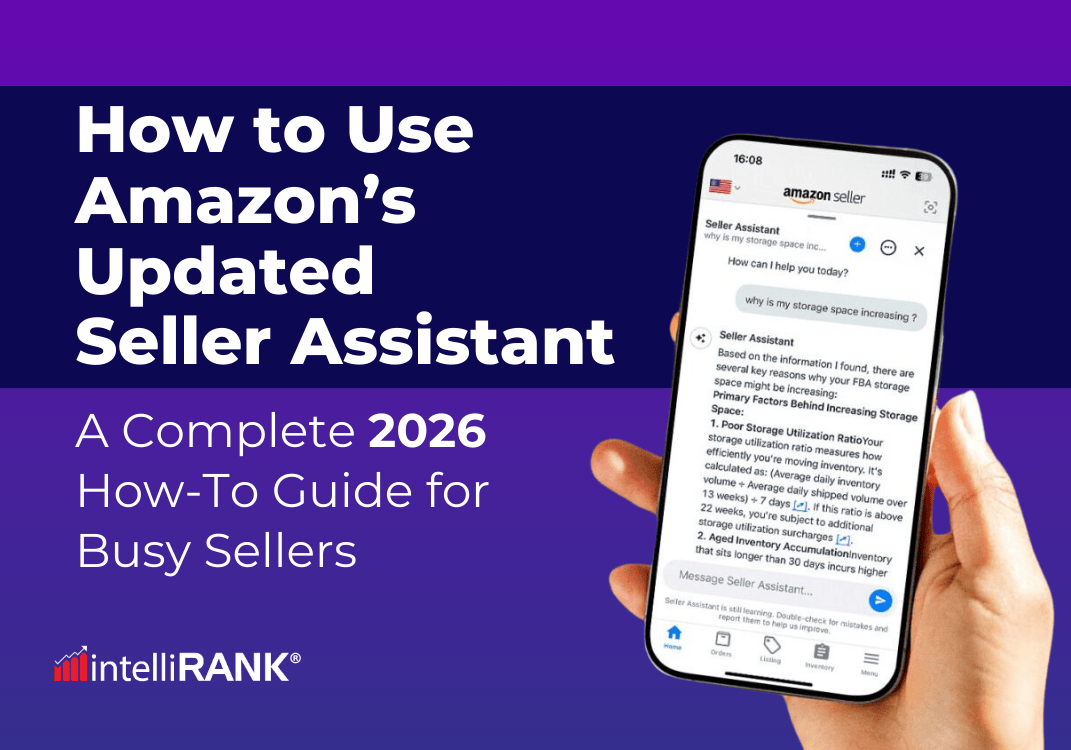
In September 2025, Amazon released a major update to Seller Assistant, the AI tool that helps merchants manage their businesses inside Seller Central.
While the announcement received attention when it was published, many sellers still haven’t fully explored what the tool can do — or how to integrate it into their daily workflows in a way that saves time, reduces manual tasks, and improves decision-making.
This guide was created to fill that gap.
You’ll learn what the updated Seller Assistant can actually do, how it works behind the scenes, and—most importantly—how you can use it as part of your operations, even if you’re a solo seller or managing a large catalog.
1. Understanding What Seller Assistant Actually Does
Many sellers still confuse Seller Assistant with Amazon’s other AI tools (like listing generators and ad creatives). The updated version is built for something much more operational: continuous monitoring, issue detection, and action recommendations.
Think of it as a dashboard that:
- Watches your account, listings, inventory, and compliance around the clock
- Surfaces actionable tasks
- Suggests strategies based on real-time data
- Takes actions only when you authorize them
This means Seller Assistant won’t change your prices behind your back or modify your listings without permission. Instead, it presents options like:
- _“This ASIN is slowing down. Here are three paths: keep price, lower price 10–15%, or remove inventory.”_
- _“This product may violate a new compliance rule in the UK. Here’s the requirement and what to upload.”_
- _“You are projected to run out of stock in 6 days. Here’s a recommended replenishment quantity.”_
- _“Demand for this SKU is rising; consider increasing FBA shipments by X units.”_
2. Setting Up the Tool Properly (Most Sellers Skip This)
Before you start working with recommendations, you should verify that Seller Assistant has the right visibility and permissions.
Step 1: Check your authorization settings
Inside Seller Central:
1. Go to Settings → User Permissions → Seller Assistant
2. Decide whether Seller Assistant can:
- Only make recommendations
- Perform specific approved actions
- Fully automate routine tasks
Start with the middle option. This way you never lose control, but the assistant can execute tasks you approve (like creating a removal order or generating a shipment).
Step 2: Enable marketplace-specific compliance monitoring
If you sell in multiple regions, turn on monitoring for US, EU, UK, Canada, Middle East.
Each has different safety requirements, and the assistant cannot monitor what you don’t enable.
Step 3: Customize alert thresholds
You can decide the sensitivity level for:
- Low-stock warnings
- Excess inventory
- Pricing anomalies
- Account health issues
If you prefer fewer alerts, adjust the thresholds higher. If you want a more proactive experience, set them lower.
3. Using Continuous Monitoring to Stay Ahead of Problems
One of the biggest advantages of this update is the “always-on” monitoring. Seller Assistant scans your business for:
A. Inventory risks
- Slow-moving SKUs
- Overstocks
- FBA storage fee risks
- Out-of-stock projections
- Shipment bottlenecks
B. Listing issues
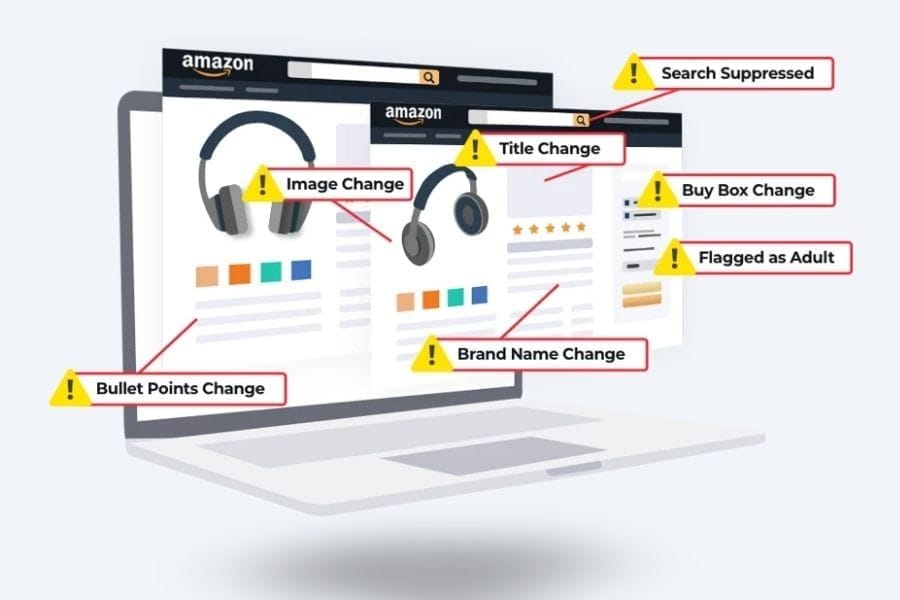
- Suppressed listings
- Detail page violations
- Quality concerns
- Missing attributes
- Incomplete compliance data
C. Account health
- Policy violations
- New regulatory requirements
- Performance notifications
- Return rate abnormalities
D. Demand signals
- Seasonal fluctuations
- Competitor price movements
- Marketplace demand surges
How to use this in practice:
Every morning:
1. Open Seller Central.
2. Go to Seller Assistant → Daily Alerts.
3. Sort by urgency.
4. Fix the first three tasks immediately.
4. Managing Inventory With Data-Backed Suggestions
Amazon built a more proactive inventory engine into the tool. Instead of static data, you now get context + action paths, which saves tons of manual analysis.
What Seller Assistant now provides:
- Forecasted days of cover
- Excess units likely to incur long-term fees
- Slow-moving products with low sell-through
- Replenishment suggestions based on demand patterns
- FBA shipment preparation recommendations
- SKU-level explanations
How to work with this effectively:
A. Slow-moving inventory
Seller Assistant will show a box like: _“This SKU is projected to hit long-term storage fees in 17 days.”_
Below it, you’ll see options:
- Keep price as is
- Lower price by 5–20%
- Remove units
- Create a coupon to accelerate conversion
Choose based on margins, seasonality, and your long-term strategy.
B. Replenishment recommendations
Instead of raw data, you now get:
- Suggested replenishment quantity
- Rationale based on demand
- A shipment plan template
You can approve, modify, or ignore it.
C. Seasonal demand predictions
Since the model analyzes macro demand, you’ll see notes like:
- _“This SKU typically spikes in December; consider sending 25% more units.”_
- _“Competitor discounting is increasing; consider pricing review.”_
These insights help you stay ahead instead of reacting late.

5. Protecting Your Account With Automatic Compliance Monitoring
Seller Assistant now checks your listings against updated product safety and compliance rules in every region you sell in.
This includes:
- Child safety standards
- Battery regulations
- Supplement/health claims
- EU packaging rules
- Category-specific requirements
- Document expirations (e.g., COAs, certifications)
How this helps you:
You don’t have to manually monitor regulatory changes — Amazon will surface them automatically.
How to work with it:
When you see a compliance alert:
1. Open the guidance.
2. Read the specific rule it references.
3. Upload the required document or update the listing text.
4. Mark the issue as “resolved.”
This reduces the risk of suppressed listings or unexpected ASIN deactivations.
6. Using Seller Assistant for Advertising Support
The update also integrates agentic AI into Amazon Ads. While Seller Assistant won’t manage a full PPC strategy, it can now help with:
A. Bid and keyword suggestions
You can ask: _“Review my Sponsored Products for ASIN B0XXXXXX and recommend bid optimizations.”_
You’ll get a list of suggested bid increases/decreases with reasoning tied to competitiveness and search volume.
B. Budget adjustments
The assistant can analyze pacing and suggest:
- _“Increase daily budget from $20 to $35 to avoid running out midday.”_
- _“Consider decreasing budget on this ad group due to low conversion rate.”_
C. Creative generation
It helps generate:
- Sponsored Brand headlines
- Video script outlines
- Lifestyle copy for Sponsored Display ads
D. Strategy guidance
Ask: _“Suggest a retargeting strategy for my top ASINs.”_
It will outline campaign structures and expected outcomes.
7. Building Daily, Weekly, and Monthly Routines Around Seller Assistant
The tool becomes most valuable when integrated into your workflow. Here’s a recommended rhythm:
- Daily Routine (10–15 minutes)
1. Check urgent alerts. Focus on account health, suppressed listings, compliance issues, or stock-out risks.
2. Review pricing recommendations. If a SKU is losing competitiveness, adjust quickly.
3. Look at PPC alert summaries. The assistant surfaces overspending, underspending, wasteful keywords, or missed opportunities.
- Weekly Routine (45–60 minutes)
1. Analyze slow-moving inventory and decide:
- Price adjustment?
- Coupon?
- Removal?
2. Replenish stock based on updated forecasts. Compare Amazon’s recommendation with your own sales patterns.
3. Refresh PPC strategies. Use conversational prompts to:
- Generate new keyword lists
- Update bids
- Explore new audiences
4. Check marketplace-specific compliance, especially important for EU and UK sellers.
- Monthly Routine (90 minutes)
1. Review long-term storage risks. Plan removals in advance.
2. Evaluate product performance trends. Seller Assistant provides summaries like:
- _“Top 5 rising SKUs”_
- _“Top 5 declining SKUs”_
3. Analyze seasonality. Use historical insights to prepare for the next month.
4. Review your authorized automations. As you trust the tool more, update the permissions to automate repetitive tasks.
8. Using Seller Assistant as a Decision Support System
Even though Amazon positions this tool as capable of handling routine operations and complex strategy, it’s best used as a decision support tool, not a business autopilot.
Here’s how to get the most value:
A. Treat recommendations as starting points
Don’t approve anything blindly. Evaluate suggestions like you would from an employee.
B. Ask clarifying questions
Example: _“Why are you recommending I lower the price on SKU B0XXXXX?”_
You’ll get specific reasoning.
C. Compare recommendations with your own insights
D. Automate only when ready. Start small:
- Automate removal orders
- Automate low-risk replenishments
- Automate listing attribute fixes.
Final Thoughts
Amazon’s Seller Assistant doesn’t replace good operations, but it does make them easier. Instead of manually scanning dozens of reports, you get:
- prioritized to-do lists
- contextual explanations
- actionable recommendations
- 24/7 monitoring
- guidance for inventory, ads, compliance, and pricing
You still make the decisions, but you make them faster and with better data! 🚀
If you want to leverage Amazon’s Seller Assistant to its fullest while keeping your advertising strategy sharp, our team can provide hands-on PPC management and strategic guidance.
We help you act on the insights from the AI, optimize campaigns, and ensure your brand stays ahead, making faster, data-driven decisions that drive results.
Want to work with us?
SCHEDULE A DISCOVERY CALL NOW\ Claim Your FREE Personalized PPC Growth Plan
Share this article
Free for Amazon Sellers
Get the FREE 4-Step Amazon Growth Strategy
The exact framework used by 4,000+ Amazon brands to launch, optimize, and scale — yours free.